ComfyUI MCP Server: Local Setup and Connection Checks
Verify the connection before asking for a render
A ComfyUI MCP server gives an AI client tools for working with ComfyUI. For the official local connection, the client launches a stdio server that drives a ComfyUI instance through comfy-cli. Comfy Cloud uses a separate remote HTTP connection. Choose the target first, then verify that the client can reach it and inspect a known workflow before submitting a generation job.
Seeing a server in your client's settings proves only part of the setup. The launcher might start while its backend command is missing. The backend might respond while the selected workflow needs a node or model that isn't installed. A submitted job might finish while the client still fails to retrieve its output.
This guide follows those boundaries in order. It uses official sources checked on October 14, 2026 and includes an illustrative configuration, not a claim that a local ComfyUI instance was installed or tested for this article.
Key Takeaways
- Distinguish local stdio, remote ComfyUI targeting, and Comfy Cloud HTTP before copying configuration.
- Check the server and target instance, then validate the graph against installed nodes and models.
- Keep the job identifier and verify its actual output before calling a run successful.
Choose the ComfyUI MCP server by execution target
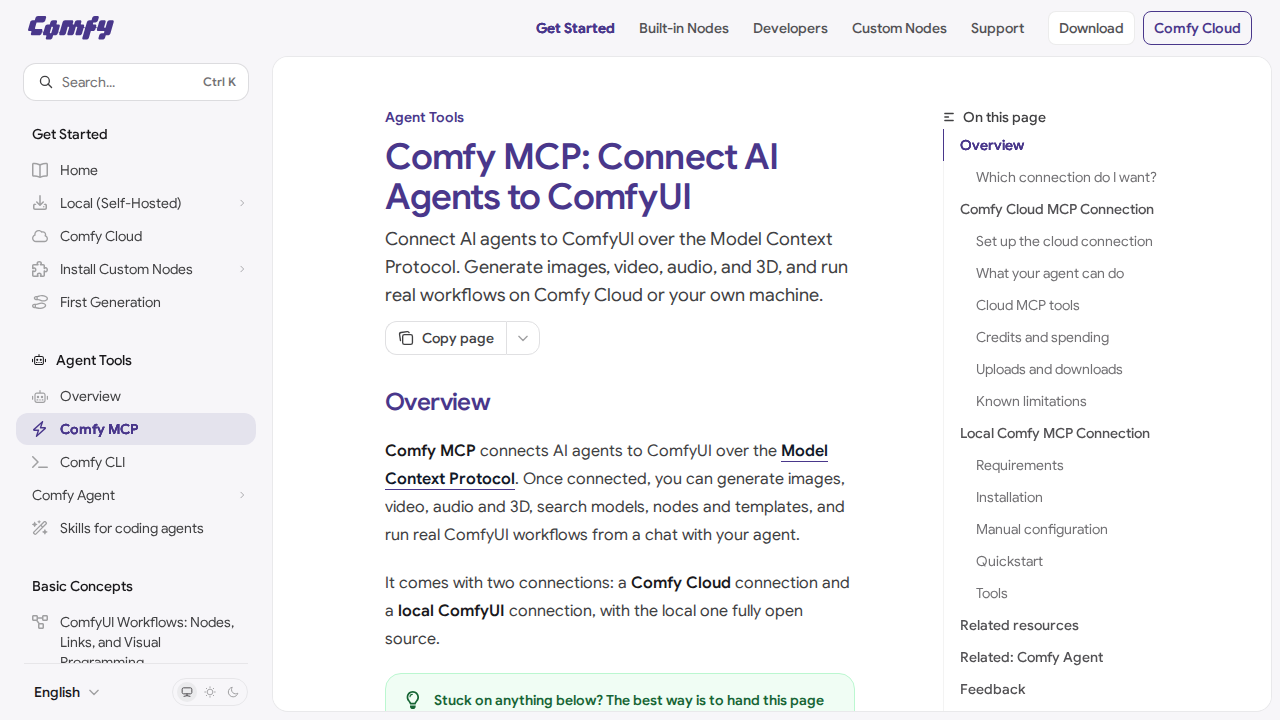
Official ComfyUI MCP documentation, captured October 14, 2026.
The official Comfy MCP documentation covers local and cloud connections. The local package uses a process launched by the client. The hosted cloud endpoint is https://cloud.comfy.org/mcp and uses remote HTTP. Those are different configurations, even when both let an assistant work on a workflow.
Start by answering where the graph should execute. If your goal is to use the ComfyUI installation and models on your workstation, configure the local package. If the work belongs on Comfy Cloud, use the hosted connection and its documented authentication flow.
A third arrangement puts the MCP process on one machine and ComfyUI on another machine you control. The local project's repository documentation describes targeting that instance through COMFYUI_URL. The MCP process still uses stdio with its client; the backend address changes. Moving the backend does not automatically turn the MCP server into an HTTP endpoint.
Arrangement | Client connection | Execution target to verify |
|---|---|---|
Local package and local ComfyUI | Client launches a stdio process | Your selected workstation instance |
Local package targeting another machine | Client launches a stdio process | The configured ComfyUI backend |
Comfy Cloud MCP | Remote HTTP connection | Comfy Cloud |
Inspect the actual graph as well. The local server supports hosted partner-model operations, so using a local MCP process does not prove that every model call stays local. Decide whether hosted work is allowed and make that choice explicit in the request.
Think of the MCP connection as the control panel and ComfyUI as the workshop. Reaching the panel doesn't tell you which workshop it controls or whether that workshop has the required equipment. The next step is to make the local runtime identifiable.
Prepare the local runtime and register the launcher
For the local path, install the MCP package and the engine it wraps. The current repository quickstart documents the following command:
# Install the MCP wrapper and the CLI engine named by the current quickstart.
pip install comfy-mcp "comfy-cli>=1.14.0"
Use the environment you intend the client to launch. The published comfy-mcp package is a useful place to check the distribution and Python requirements. Also compare its documentation with the current repository: a released package and repository main can expose different tools.
If you already have a ComfyUI workspace, preserve it and use the documented connection procedure for that installation. If you need a new workspace, the project's quickstart includes comfy install, followed by comfy launch. Don't create a second installation merely because a generic tutorial assumes a fresh machine.
Confirm that both commands resolve in the relevant environment. A terminal with an activated virtual environment can find programs that a desktop client's child process cannot. This explains why a setup may work in a shell but fail after the client launches the same-looking command.
Use explicit paths when the environment differs
For clients that accept an mcpServers JSON configuration, the following illustrates a local launcher. Replace each example path with the real absolute path for your system; use your client's supported configuration format and location.
{
  "mcpServers": {
    "comfy-local": {
      "command": "/absolute/path/to/venv/bin/comfy-mcp",
      "env": {
        "COMFY_BIN": "/absolute/path/to/venv/bin/comfy",
        "COMFYUI_URL": "http://127.0.0.1:8188"
      }
    }
  }
}
The server entry's label is for the client. The executable path must identify the installed MCP launcher. COMFY_BIN identifies the comfy-cli executable when the launched environment cannot find the intended one through its search path.
Windows paths and executable names differ from this Unix-style example. Use the paths created by your actual environment rather than copying the directory structure literally. A JSON string also needs its path separators escaped correctly when required.
Reload the client's server configuration after saving it. Then inspect the discovered tools instead of assuming that the label alone proves the connection works.
Verify the target and installed dependencies
Ask the client to inspect the connected server before it generates anything. The official local workflow begins with server_info, which helps establish the running instance and workspace. Follow that with the available node, model, and workflow-inspection tools rather than naming tools remembered from a different package.
This first request should be narrow. For example:
Confirm which ComfyUI instance this server targets and whether it is running. Inspect the available tools, nodes, and model files needed by my workflow. Do not submit a job, download models, install node packs, or use hosted generation yet.
That request defines the intended stage. An assistant can then report a missing dependency without trying to repair the environment automatically.
Read the response for concrete evidence. Which host did it reach? Which workspace is selected? Which node class or model file is missing? If a tool returns an error, preserve it instead of asking the assistant to guess a replacement package.
The MCP tools specification describes tool discovery and calls. Discovering a tool establishes that the server exposes an interface; it does not establish that every dependency behind it is available or that a particular call will succeed.
Check a known graph before a generated one
Begin with a workflow that already runs in your intended ComfyUI installation. This separates connection problems from an assistant's graph-authoring mistakes. Keep an unmodified copy and let the assistant inspect a working copy.
Check the graph against the live node catalog. A template can refer to a class that your instance hasn't loaded, or select a model filename that isn't present. A file seen on one machine also may not exist on a different target machine.
Ask for a specific dependency list and a minimal change plan. Once the graph and target agree, the next stage is to submit one controlled job and follow it through to its result.
Run one known workflow and retrieve its output
Use a small workload whose expected behavior is clear. Set the seed, output dimensions, batch size, and model selection deliberately. If the workflow calls a hosted model, confirm that this is the execution path you intended before submitting it.
A useful test request is:
Run this known workflow once with the agreed settings. Report the submitted job identifier, wait for that job's result, and retrieve its output into the agreed directory. Do not retry automatically or change the workflow if it fails; show the failing stage and error first.
The exact call names depend on the connected server and version. The official local documentation illustrates the core loop with run_workflow and fetch_outputs. Use the live tool definitions for arguments and any polling operation, rather than assuming another server's examples apply.
Record the identifier returned at submission. Without it, a later image can be mistaken for the result of this run when it belongs to an earlier job. Queue acceptance, execution completion, and output retrieval should be treated as separate events.
Verify the retrieved file itself. Open the image or video, check the expected dimensions or media type, and confirm that it corresponds to the intended input. A successful tool response with an empty output list is a reason to investigate, not proof of a useful generation.
Keep workflow paths and output paths distinct
A workflow path identifies the graph submitted to the backend. An output directory identifies where retrieved results should be copied or saved. Those locations can belong to different processes or machines.
Use absolute paths for the first test and note which machine must see each file. Relative paths inherit a working directory that can differ from the shell or project folder you have in mind. This is especially confusing when the client, MCP process, and ComfyUI backend do not share a filesystem.
If an input asset must be staged into the target instance, do that through the supported mechanism and verify it appears there. A path in a chat attachment is not automatically a path available to the backend.
Keep the first successful result beside its workflow and settings. That evidence makes the next troubleshooting decision much more concrete.
Diagnose failures at the correct layer
A connection error can describe several different failures. Start with the earliest failed boundary and test one change at a time.
Failure point | First thing to inspect | Evidence to retain |
|---|---|---|
Client cannot start the MCP process | Launcher path and process environment | Client launch error |
Server starts but tools fail | Backend executable and installed package compatibility | First tool error and relevant versions |
Server cannot reach ComfyUI | Target address and running instance | Target and connection error |
Graph validation fails | Live node classes and selected model files | Missing identifiers and workflow copy |
Job is accepted but fails | ComfyUI execution error | Job ID and failing node |
Job finishes but output is absent | Returned output metadata and destination path | Retrieval response and expected file |
The table is a diagnostic aid, not a list of guaranteed fixes. A package import failure and a connection refused error happen at different stages, even if the client displays both as “server unavailable.”
Check tool names against the live server
Community examples can refer to another implementation or an earlier release. If a client says a tool name is unknown, inspect the tools currently discovered under that server. Don't infer a tool name from a blog heading or copy another client's namespaced identifier.
If tools appear twice, examine whether two configuration entries launch the same server. If the tools belong to the wrong instance, check target configuration before asking the assistant to run another job.
Keep stdout available for the protocol
The MCP transport specification defines how stdio uses the subprocess streams for protocol communication. Unexpected startup output or a process that exits during import can interfere with that connection. Use the client's logs and the server's documented diagnostic options to identify the failure.
Share only the relevant error and configuration shape when requesting help. Remove credentials and review local paths or prompt text before publishing a log. The project's security notes describe its trust boundaries and configured environment.
A local connection can still trigger changes
Reading the node catalog, running a graph, downloading a checkpoint, installing a node pack, and calling a paid hosted model are different actions. Define the allowed task so the assistant knows which stage it can perform.
For example, permit one run of a known graph while requiring a separate decision before replacing dependencies or choosing a hosted model. Keep the approved settings in view. This is particularly useful when troubleshooting tempts an agent to turn a small connection problem into a much larger environment change.
Once the connection and execution path work, preserve that state before moving on to automated iteration.
Save the graph, settings, and evidence of the run
Save a copy of the graph you actually ran, not just the template URL. Record the selected models, seed, dimensions, target instance, package versions, and output location. Keep the job identifier with the resulting files.
If you ask an agent to modify the graph, describe the intended change and compare the saved result with the baseline. A request to change the camera motion should not silently become a model replacement or a switch from local to hosted generation.
Use a small acceptance checklist:
The server implementation and transport are identified.
The intended target instance responds.
The required nodes and model selections are verified.
A known graph validates and submits successfully.
The submitted job's completion is checked.
Its actual output is retrieved and inspected.
The workflow and settings are saved for another run.
These checks establish a usable connection for the tested task. They don't prove that the agent can build every possible workflow or that a larger workload will fit your hardware.
A dependable ComfyUI MCP server setup gives you more than a tool list in a chat window. It gives you a clear chain from request to graph, graph to job, and job to verified output. Build that chain once with a small known workflow, then expand it with changes you can explain and reproduce.