Claude Code Tips: From Beginner to Power User in 2026
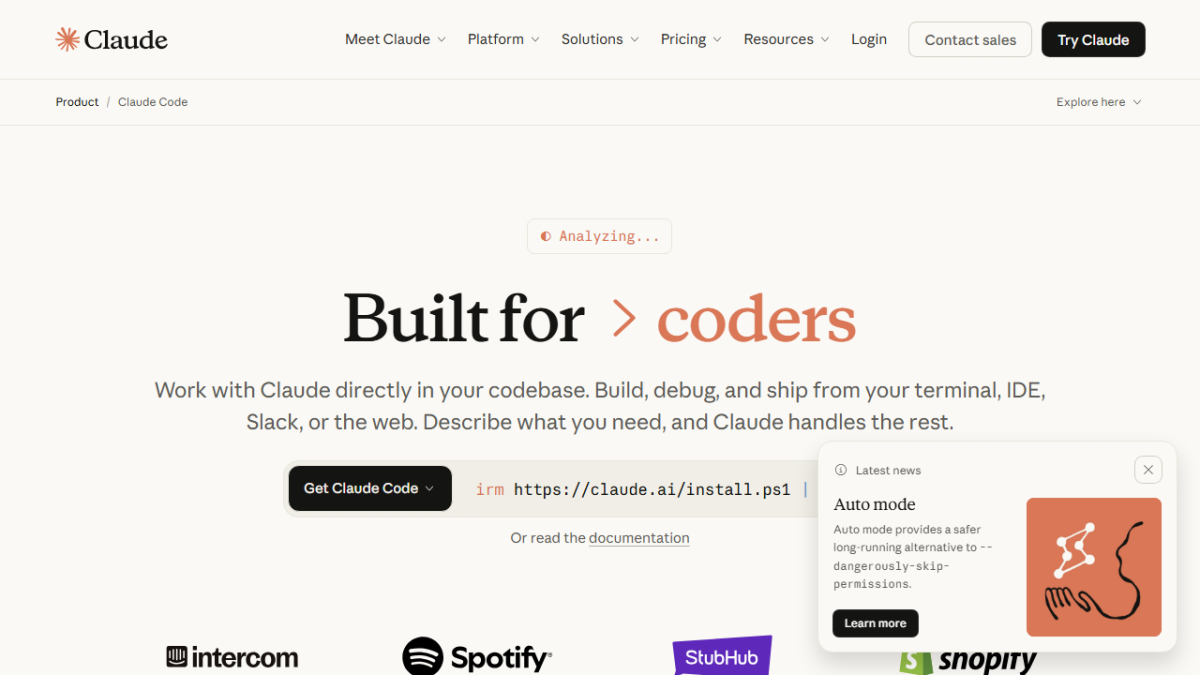
If you've been using Claude Code for more than a week, you've probably hit at least one of these walls: it rewrites files you didn't ask it to touch, it loses context halfway through a large refactor, or you spend more time undoing its mistakes than you would have spent writing the code yourself.
You're not alone. And it's not a sign you're using the tool wrong — it's a sign you're ready for the next layer.
This guide assumes you've already run npm install -g @anthropic-ai/claude-code and typed your first prompt. What follows is the stuff nobody puts in the getting-started docs: the workflows that turn a developer who uses Claude Code into a developer who gets results from Claude Code.
What Claude Code Actually Is in 2026
Let's clear the fog first. Claude Code is not an autocomplete tool. It's not a pair programmer in the traditional sense. It's an autonomous agent that runs in your terminal, reads your codebase, makes edits, runs commands, and keeps going until you tell it to stop.
That distinction matters because it shapes how you should interact with it.
GitHub Copilot suggests the next line. Cursor gives you a chat panel inside your IDE. Claude Code sits in a terminal, plans multi-step tasks, and executes them — including running git commit, executing npm test, or spinning up a development server.
It supports Claude 3.7 Sonnet and Opus 4, with a 200,000+ token context window. That means it can reason across an entire codebase in a single conversation rather than per-file. For complex debugging or architectural decisions, that's a genuine advantage over tools that operate at the file level.
But here's the catch: more power means more ways to go wrong. The key to getting value from Claude Code isn't learning every command — it's understanding when to delegate and when to take the wheel yourself.
The CLAUDE.md Framework — The Single Highest-Leverage Improvement
If you do nothing else after reading this post, do this: create a CLAUDE.md file in your project root.
This is a project-level instruction file that Claude Code reads at the start of every session. It's how you solve the biggest complaint developers have about the tool: context loss on large codebases.
A bare-bones CLAUDE.md looks like this:
# Project context for Claude Code

## What this project does
[One paragraph describing the app and its purpose]

## Tech stack
- Frontend: [framework, version]
- Backend: [framework, version]
- Database: [type]

## Key conventions
- We use [naming pattern] for functions
- API responses follow [structure]
- Tests are located in [directory]

## Important boundaries
- Never touch [specific file or directory]
- Always check tests after modifying [area]
The more specific you are, the better Claude Code performs. Compare these two instructions:
Weak: "Use TypeScript best practices."
Strong: "All functions that touch the database must return Promise and include a try-catch that logs to our Sentry instance. Do not use any — if a type is unknown, define an interface."
The strong version eliminates an entire class of low-quality outputs. It took you two minutes to write. It saves you twenty minutes of corrections.
When to Use Claude Code (and When to Switch Tools)
This is the decision framework developers keep asking for, and nobody gives it to them clearly. Here's how the community actually uses it:
Use Claude Code when:
- You're starting a new feature from scratch — it excels at greenfield work where there's no existing pattern to accidentally break
- You're doing a cross-file refactor — renaming a function across 40 files, extracting a utility, restructuring a module
- You're debugging a complex failure — especially when the bug spans multiple files or involves an unexpected interaction
- You're architecting a new system — describing what you want and iterating on the design together
Switch to Cursor or inline editing when:
- You need to make a one-line change inside a file — opening Claude Code for that is overhead
- You're in a pairing session and want to stay in the IDE
- You need tight integration with your linter or formatter running in real-time
The Verge's 2026 comparison found that Cursor edges out on developer experience and IDE integration, while Claude Code wins on reasoning depth for complex tasks. Many senior developers use both — Claude Code for the hard problems, Cursor for the fast ones.
There's no single right answer. The strategic skill is knowing which tool to reach for.
The Power-User Workflow: Tips from Real Developers
These aren't documented in the official docs, but they're used by every developer who's gotten real value from Claude Code over multiple sessions.
1. Use /act for persona adoption
Prefix a prompt with /act senior-backend-engineer and Claude Code switches to a more rigorous, architecture-aware mode. It asks clarifying questions before diving in. It double-checks edge cases. For complex tasks, this one phrase dramatically improves output quality.
2. Use undo — it's more powerful than you think
Claude Code maintains a session history that goes beyond just the last edit. If it goes down the wrong path, /undo can revert multiple steps. Don't just Ctrl+C out and lose context — use the built-in undo to recover cleanly.
3. Break large tasks into smaller steps
The biggest mistake developers make: dumping a 30-step refactor into a single prompt. Claude Code handles this poorly — it loses track of where it is, makes inconsistent decisions across steps, and you're left cleaning up a mess.
Instead: "Step 1 — identify all files that import from utils/logger." Then, after it completes: "Step 2 — extract the logging logic into a separate package." One step at a time. It's slower but it's right.
4. Incremental prompts beat dump prompts
Same principle as above, but for writing. Instead of: "Write a REST API with 8 endpoints and auth." Do: "Write the Express server setup. Confirm the structure looks right. Then we'll add the auth middleware. Then the routes." Each step validates before you commit to it.
5. Be explicit about what not to touch
Claude Code is aggressive about making changes. If there's a file or directory you absolutely don't want modified, say so in the prompt: "Do not modify anything in /migrations/ — that directory is off-limits." You can also add this to CLAUDE.md. It's not a guarantee, but it dramatically reduces accidental edits.
6. Use --dangerously-disable-sandbox deliberately
This flag lets Claude Code run commands with fewer restrictions. Most developers shouldn't use it by default — it's there for when you need it, not as a default setting. If you do use it, be clear about what specific command you're authorizing and why.
Recovering from Claude's Mistakes
Here's what actually happens in practice: you come back to a session and Claude has rewritten three files in ways that break your tests. What do you do?
Context loss recovery
If Claude loses the thread on a large codebase, the fastest recovery is:
1. Type /clear to reset the conversation context
2. Paste in the specific file or function you need help with
3. Be surgical — give it one problem to solve, not five
The /clear command wipes the short-term context but doesn't lose your session history or CLAUDE.md settings.
Cascading rewrite recovery
When Claude rewrites an entire file instead of patching a section, use /diff to see what changed. If the change is wrong, /undo reverts it. Then re-prompt with more specific instructions: "I only want to change the handleSubmit function in this file — do not modify anything else."
Session crash recovery
Claude Code doesn't always autosave session state. For important refactoring sessions, keep a separate terminal window open with your git status visible. After significant changes, manually commit: "Claude Code — [brief description of what was done]." This gives you a clean rollback point without relying on the tool's internal state.
The hallucination edge case
In one documented case, an agent hallucinated instructions to itself and deployed to production. This is rare, but it underscores that you should never run git push commands from Claude Code without reviewing what it's actually doing first. The --verbose flag (now available via /config > verbose) shows the full file operation trace — use it when you're doing anything infrastructure-related.
The Honest Verdict: Is It Worth $20/Month?
The Reddit and HN consensus breaks down like this: senior developers who write a lot of boilerplate and architecture code tend to find strong value. Developers who mostly do one-liner edits or work in a tight IDE workflow often find it slower than just doing it themselves.
The Stack Overflow developer survey ranked Claude Code highly for debugging and architecture-level tasks — but those are specific use cases, not general coding.
Here's the framework to decide for yourself:
You're likely a good fit if:
- You work on complex projects with significant refactoring or debugging work
- You value reasoning depth over speed
- You're comfortable with CLI tools
- You've already tried Copilot or Cursor and found them insufficient for your workflow
You might not need it if:
- Your day-to-day is mostly small, fast edits in an IDE
- You're on a budget and Copilot's $10/month or free tier covers your needs
- You work in a team where git autonomy (Claude's automatic commits) creates merge conflicts
The $20/month price point puts it equal to Cursor Pro, which is worth knowing. At that price, you're not choosing between them on cost — you're choosing based on which workflow suits the problem in front of you.
Claude Code's official documentation is solid for getting the full feature list. Start there if you want a complete picture before committing.
The Real Starting Point
Everything above only matters if you start with the right setup. Not the right prompts — the right foundation. That's your CLAUDE.md file, a clear understanding of what you're handing off and what you're keeping for yourself, and a willingness to iterate on the process rather than just the output.
Claude Code is a powerful tool that rewards deliberate use. The developers who get the most from it aren't the ones who use it the most — they're the ones who use it the most strategically.