MiniMax H3 ComfyUI: Setup and First-Run Checks
Start with a workflow you can verify
A MiniMax H3 ComfyUI setup should begin with an official native template and its matching model files. H3 can run locally in ComfyUI; an API wrapper is a different execution path. Before downloading a large checkpoint, decide which task you want to run and whether the graph performs inference on your machine or sends the job to a hosted service.
That distinction explains why installation advice can sound contradictory. A screenshot of a successful hosted generation tells you little about local memory requirements. A local workflow that uses a smaller checkpoint doesn't establish that every H3 workflow will fit the same hardware.
This guide covers the route from selecting a native workflow to saving a reproducible baseline. It is based on official documentation checked on October 14, 2026. It is a setup guide, not a hardware benchmark: no generation times or GPU minimums are presented as measurements from this article.
Key Takeaways
- Use the official native workflow appropriate to your task, and update ComfyUI when its core nodes are missing.
- Download the files named by that template. Checkpoint size, GPU memory, system RAM, and offloading are different constraints.
- Complete a small baseline run before adding acceleration, extension, or reference-heavy workflows.
MiniMax H3 ComfyUI: local and hosted paths
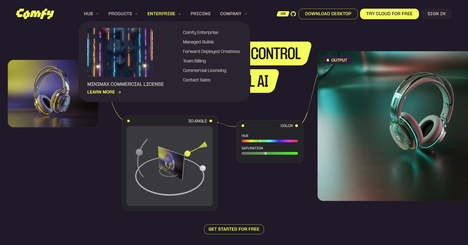
The official ComfyUI H3 overview confirms native support for open-weight H3. Its base text-to-video, image-to-video, and reference-to-video templates require ComfyUI 0.30.0 or later. Advanced templates have higher requirements, so use a current compatible release rather than treating that minimum as the best version to install today.
Local inference means the model weights are loaded by the runtime you operate. Hosted inference means another service runs the generation. Both can appear inside a node graph. Inspect the loaders, service nodes, account requirements, and output path before assuming which one you have.
This is like reading a restaurant menu versus stocking a kitchen. An API node orders a result from elsewhere. A local workflow needs the ingredients, equipment, and workspace on your own system. The same task label does not make their resource requirements interchangeable.
MiniMax describes H3 as a multimodal generation model in its official announcement. For a practical setup, focus on the inputs and outputs of the workflow you intend to use, rather than trying every supported capability at once.
Open weights also come with terms. Review the current MiniMax H3 license before deployment, redistribution, or commercial work. Do not infer unrestricted rights from the ability to download a checkpoint.
Once the execution path is clear, choose the smallest workflow that answers your immediate task.
Choose the workflow before downloading models
The native workflow documentation provides separate text-to-video, image-to-video, and reference-to-video examples. Use the template that matches the information you already have.
Starting material | Workflow to inspect | First test to plan |
|---|---|---|
A written scene description | Text to Video | One subject and one simple action |
An image that defines the opening composition | Image to Video | Modest movement from that image |
Reference material defining a subject, motion, or style | Reference to Video | One clear reference relationship |
This table is a planning aid. It doesn't rank the modes by quality or promise that a more complex graph will perform better.
For a first test, avoid asking for several scene changes, speech, detailed typography, and difficult motion in the same clip. If the result disappoints, you want to know which part failed. A simple scene lets you distinguish a working generation path from a prompt that asks too much at once.
Reference workflows deserve the same restraint. Start with a reference whose purpose you can state plainly. Is it defining the subject's appearance, the scene, or the movement? Adding more material without clarifying that relationship makes the output harder to evaluate.
Keep the baseline template separate from an experimental copy. You will use that known starting point when checking the downloads and troubleshooting later changes.
Load the native template and verify its files
Open ComfyUI's Template Library, select Video, and find the appropriate MiniMax H3 template. Follow its missing-model download prompts. If the template is absent, check the installed version and update using the instructions for your installation type.
The Comfy-Org model repository contains repackaged files for ComfyUI. Download the selection required by your workflow, not every file in the repository. Several formats and task-specific checkpoints can coexist there.
The following map reflects the current basic text/image workflow's named files. Recheck the downloaded template if these names change:
# Model locations for the documented basic text/image workflow
ComfyUI/models/
  diffusion_models/
    minimax_h3_fl2va_pruned_int8_convrot.safetensors
  text_encoders/
    qwen3vl_32b_minimax_h3_nvfp4_awq.safetensors
  vae/
    minimax_h3_video_vae_int8_convrot.safetensors
    minimax_h3_audio_vae_fp32.safetensors
  loras/
    minimax_h3_fl2v_turbo_8step_v1.0_comfyui_bf16.safetensors
The documented reference workflow uses the corresponding ref2va diffusion checkpoint. Use its own model list rather than substituting the text/image model by name alone. The native guide also identifies the turbo LoRA in the workflow's scan, even when the acceleration switch is off.
After downloading, inspect each loader's selection. A file stored in the wrong folder may exist on disk but remain absent from the relevant dropdown. A renamed file may need to be selected again. An interrupted download can look like an installation problem when it is really an incomplete artifact.
Record the source repository, exact filenames, and workflow version. This small inventory is more useful than a vague note that you downloaded “the H3 model.” Next, verify that the machine can run this particular selection.
Establish a small, reproducible first run
GPU memory, system RAM, disk space, and software compatibility are separate checks. The amount downloaded is not a direct prediction of peak VRAM. A workflow can also move data between system memory and the GPU, so a single utilization screenshot cannot explain the whole execution.
Check the requirements attached to the chosen checkpoint and template. Confirm that the runtime sees the intended GPU, that the relevant libraries loaded, and that the model files are complete. Leave enough disk space for the selected weights and generated outputs.
Use the template's preview settings for the baseline. In its overview, Comfy distinguishes the local native canvas from hosted 2K generation: larger delivery output requires a separate upscale stage. Start by verifying the base generation rather than increasing the resolution to match a hosted promotional example.
An illustrative prompt for a first test could be:
A ceramic mug stands on a wooden desk. The camera slowly moves closer while soft morning light crosses the surface. Quiet room ambience, no speech.
This is a proposed test prompt, not a claim that a particular output was generated. It gives you concrete things to inspect: the mug should remain recognizable, the motion should match the instruction, and the audio should suit the scene.
Save the seed, dimensions, duration, model selection, and sampling settings with the workflow. If the run succeeds, replay the exported file outside the node preview. Check the whole clip and its audio track rather than judging only the first frame.
When comparing another configuration, change one major variable at a time. A new checkpoint, a longer clip, and an attention patch introduced together make the result difficult to interpret. A controlled baseline makes failures easier to locate.
Diagnose missing nodes and memory failures by stage
Troubleshooting works best when you identify where the run stopped. Separate graph loading, model loading, generation, decoding, and export. Each stage suggests different checks.
Symptom | First checks | Evidence to keep |
|---|---|---|
Template or core node is missing | Installed ComfyUI version and startup import failures | Missing node identifier and startup log |
A loader cannot find a model | Folder, filename, completed download, loader selection | Expected filename and actual path |
Model loading fails | Exact checkpoint, compatible runtime, available memory | First exception and model format |
Generation runs out of memory | Output dimensions, duration, references, other workloads | Failing stage and resource readings |
Decode or export fails | Decoder settings and the original template's output path | Decoder/export error and workflow copy |
Treat these as diagnostic directions, not guaranteed fixes. The same visible symptom can have several causes.
Missing nodes are not always missing extensions
An unfamiliar node name can belong to ComfyUI core. Before searching for custom-node packs, compare the graph with the official template and confirm that the core version supports it. Read startup errors as well: a node can be unavailable because its module failed to import.
If a third-party workflow includes actual custom nodes, identify the required repository from its maintainer's instructions. Keep that investigation separate from getting the official baseline to load. Installing unrelated packs won't resolve a core-version mismatch.
Do not treat a memory headline as a guarantee
A hardware claim needs the accompanying checkpoint format, settings, references, runtime, and offload configuration to be useful. Without those details, “runs on my GPU” is an anecdote, not a specification you can rely on.
If the failure happens during generation, return to preview dimensions and a short clip, then compare the same graph again. If it fails before generation begins, reducing clip length may not address the actual problem. Preserve the first meaningful exception instead of chasing every warning printed afterward.
Avoid changing several memory and acceleration settings blindly. A run that loads successfully but takes much longer is a different result from a run that fails to load. Record both outcomes before deciding which configuration suits your work.
Separate technical success from useful output
A completed job confirms that the path executed. It doesn't establish that the subject stayed consistent, speech was understandable, motion was plausible, or a reference was followed.
Evaluate those requirements explicitly. For a product shot, inspect the object's shape and any important markings through the clip. For a reference-conditioned shot, check the intended reference relationship. For dialogue, listen to the exported audio rather than relying on the waveform alone.
Once the baseline is both technically working and useful for the chosen task, optimize that task rather than the entire ecosystem at once.
Save a working baseline before adding optimizations
Keep a copy of the original graph alongside the one you tune. Record the exact settings and the output used to judge it. That gives you a way back when an update or optional dependency changes the result.
The official text-to-video workflow JSON is a useful reference for checking what belongs in the starting graph. A template is still a moving artifact, so save the copy you actually used rather than assuming a later download is identical.
Explore turbo mode, attention changes, or extension workflows only after a baseline exists. Read the current compatibility guidance for each option. Smaller files, fewer steps, and a faster attention backend address different parts of execution; they are not interchangeable descriptions of “optimization.”
Judge an optimization against the task. A faster preview can be useful even if it is unsuitable for a final reference-sensitive shot. Conversely, a configuration that improves one frame but weakens the motion may be a poor choice for the delivered video.
Before calling the setup ready, check:
The workflow's local or hosted execution path is understood.
Required core nodes load without unexplained import failures.
Each loader selects the intended file from the correct folder.
A small test completes, exports, and plays with the expected audio.
Seed and settings are saved with the workflow.
Output quality is assessed against the actual task.
The model's current license has been reviewed for the intended use.
A reliable MiniMax H3 ComfyUI setup begins with a graph you can explain and a result you can reproduce. Get one straightforward clip working, keep the evidence of that run, and let the next change answer one specific question.