ChatGPT Slash Commands: The Complete 2026 Guide
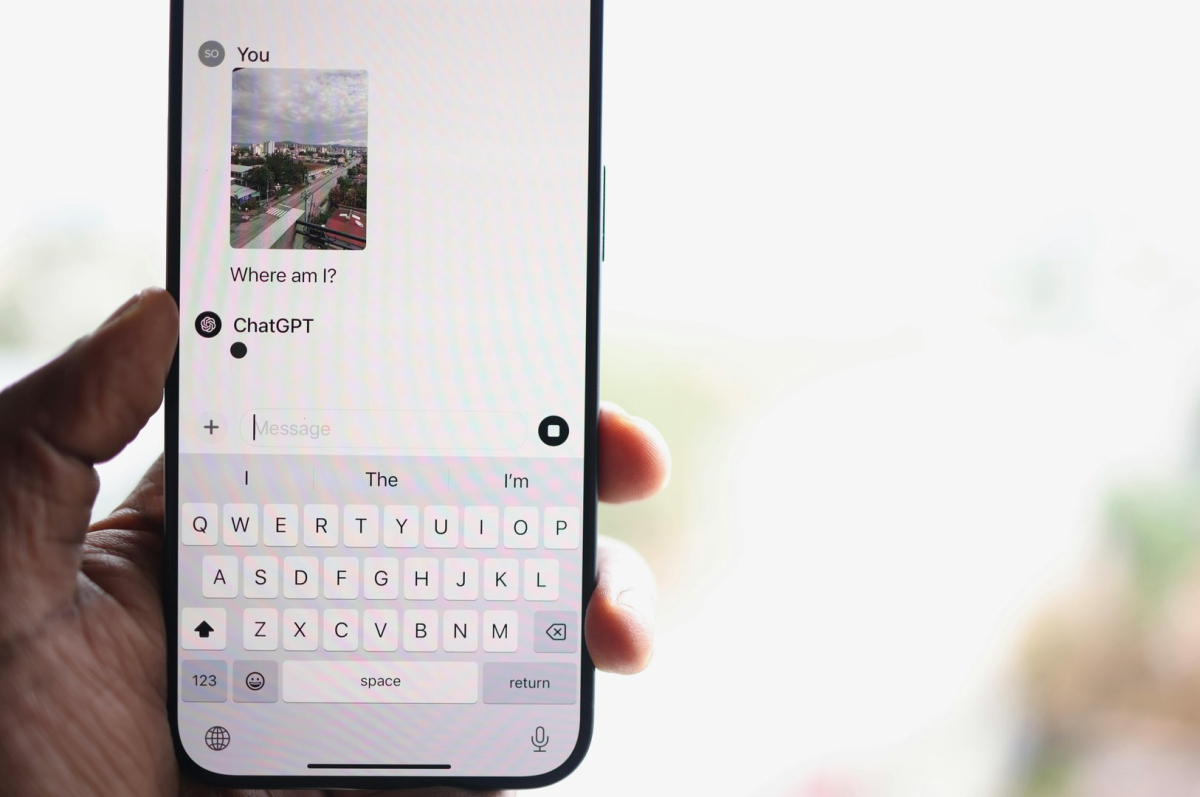
You have been typing into ChatGPT for two years. You know the basics. You have had it write emails, summarize documents, debug code. You have noticed that sometimes when you type /stuck, something useful happens. And you have been quietly aware that there are other things you could type after that slash that might do things, but you have never looked them up properly.
This is the lookup. Here is what the slash commands do, what is new in 2026, and when to use each one.
What Slash Commands Actually Are
A slash command is a structured trigger that tells ChatGPT to invoke a specific behavior rather than process your message as free-form text. When you type /stuck, you are not asking ChatGPT to think about being stuck — you are telling it to run the stuck-detection protocol. When you type /image, you are not asking it to describe an image — you are telling it to enter image generation mode.
The difference matters because the output is different. A command is a mode switch, not a clever prompt. It changes how ChatGPT allocates its attention, which tools it reaches for, and what format it outputs. For many tasks, commands produce better results faster than equivalent natural language — not because the AI is smarter when commanded, but because the command is more precise.
The 2026 command set is broader than earlier versions. Image generation, deep research, canvas workflows, and analysis tools are all accessible via command. The practical effect is that the interface has become more capable for users who know what they are reaching for.
The Complete 2026 Slash Command List
Writing Commands
/write — Opens a blank document in ChatGPT Canvas and enters writing mode. ChatGPT will generate a full first draft based on your follow-up instruction. Unlike standard chat, Canvas is a persistent editing environment where you can revise sections, ask for alternatives, and adjust tone without losing context.
/rewrite — Takes existing text you provide and rewrites it. You can specify a goal: "make this more concise," "change the tone to formal," "adapt for a technical audience." The rewrite command is more targeted than /write — it assumes you already have content and need to transform it.
/edit — The most granular of the writing commands. Specify a section of text and a specific change: "shorten the third paragraph," "add a call to action at the end," "change the opening from passive to active voice." Useful when you have a near-final draft and need targeted adjustments.
Research and Analysis Commands
/search — Triggers a live web search rather than using training knowledge. Specify your query clearly: /search "best practices for API rate limiting" returns current results with links. This is the command to use when you need up-to-date information or when your question is specific enough that an incorrect training-memory answer would be worse than no answer.
/analyze — Takes a document, dataset, or piece of code you provide and produces a structured analysis. The analysis format depends on the content type: it returns structural analysis for documents, error identification for code, and pattern recognition for data. This is the command to use when you have something in front of you and need to understand it, not when you need to generate something new.
/deep_research — The most thorough research command. It performs multi-round searching and synthesis, reading multiple sources and producing a structured report rather than a single answer. For complex questions where a single search would miss relevant context, /deep_research runs a longer cycle and returns a more complete output. Time cost is higher; quality is significantly better for complex topics.
/research — A lighter version of /deep_research. Single-pass searching and synthesis. Use this when /search is insufficient but /deep_research is overkill — mid-complexity questions where you want synthesis rather than a raw result.
Image and Generation Commands
/image — Switches to image generation mode. Describe the image you want and ChatGPT generates it using DALL-E. In 2026, image generation supports higher resolution, more consistent character reference (for multi-image workflows), and improved text rendering within images. The quality is meaningfully better than 2024 equivalents.
/image_edit — Takes an existing image and a modification instruction: "add a sunset background," "remove the person in the foreground," "change the style to watercolor." This is the inpainting workflow — targeted modification rather than full generation.
Canvas and Workspace Commands
/canvas — Opens a persistent workspace. This is where you build multi-file projects, run code, and collaborate with ChatGPT on structured documents. Canvas in 2026 supports live code execution for Python and JavaScript, real-time document collaboration, and the ability to upload and work with files.
/code — Enters code-focused mode. ChatGPT prioritizes code accuracy, execution planning, and debugging. When you use /code followed by a programming task, it thinks in terms of modules, dependencies, and execution rather than general language. Useful for complex implementation questions where the general model's tendency to approximate would be costly.
Memory and Context Commands
/memory — Returns your stored custom instructions, memory, and GPT configurations. Useful for checking what context ChatGPT has access to before a session. In 2026, /memory also shows active project context — what files or topics are currently loaded.
/reset_memory — Clears the current session's working memory. Does not delete your saved custom instructions. Use this between projects when you want ChatGPT to approach a new topic without carry-over from a previous conversation.
Productivity Commands
/stuck — Invokes the stuck-detection protocol. ChatGPT identifies where you are in your process, what the specific blocker is, and suggests a concrete next step. Most useful when you have been working on a problem for a while and have lost the thread. Less useful when you have not started yet.
/gpt — Switches between GPT models or checks which model is currently active. In 2026, with multiple model variants available in ChatGPT (standard, reasoning-enhanced, image-optimized), /gpt lets you confirm which model is handling your request and switch if needed.
/translate — Targeted translation mode. Specify a target language: /translate into Japanese. More accurate for formal translation tasks than standard chat because it activates translation-specific attention patterns rather than general text generation.
/summarize — Produces a structured summary of the provided text. Different from copying text and asking "summarize this" — the command uses a structured extraction format that separates key facts, main arguments, and action items. Particularly useful for meeting notes and long documents.
The Commands Most People Miss
The survey data on slash command usage is consistent: the majority of ChatGPT users have tried /stuck and little else. Three commands that are underused relative to their utility:
/deep_research — Most users do not know this exists. It is the highest-quality research output available in the ChatGPT interface, and for anything requiring synthesis across multiple sources it outperforms manual searching and pasting. If you are writing something that requires external information, /deep_research is the starting point, not a last resort.
/canvas — Canvas is the most capable workspace environment in the ChatGPT ecosystem and most users have not opened it. Multi-file projects, code execution, collaborative document editing — these are Canvas functions. If you are doing anything more complex than single-file generation, check whether Canvas is the right environment before starting in chat.
/analyze — People paste code or text and ask "what's wrong with this?" when /analyze does the same thing with more structure. The command returns findings organized by severity, type, and location. It is a better interface for code review and document analysis than free-form chat because it follows a consistent extraction format.
How Commands Differ in Custom GPTs vs. Standard ChatGPT
Custom GPTs — the specialized AI agents you can build in the ChatGPT interface — run a modified command set. Several commands behave differently:
Commands may be overridden. A custom GPT built for code review may have /code overridden to run its own review logic rather than ChatGPT's default code mode. When using a custom GPT, test whether /stuck triggers the GPT's built-in stuck detection or ChatGPT's generic one.
Some commands may be disabled. Particularly in GPTs built for restricted contexts — customer service bots, educational tools — /deep_research, /canvas, and /image may be explicitly disabled by the builder.
Commands added by the GPT builder. Custom GPTs can add their own slash commands that only work within that GPT. A custom code-review GPT might have /audit as its primary command. If you are using a custom GPT and wondering what commands it supports, ask it directly: "what slash commands are available in this GPT?"
When to Use a Command vs. Natural Language
The rule is precision. If you can describe what you want precisely in natural language, natural language is faster and produces equivalent output. The commands earn their keep when:
You need a specific output format. /summarize produces a structured format that is hard to replicate consistently with natural language prompts. /analyze returns severity-organized findings that free-form chat would not structure the same way.
You need a mode that changes tool access. /image switches to the image generation model. /code switches to code-optimized attention. These are not promptable equivalently — the mode switch produces a different underlying process, not just different words.
You want consistent behavior across sessions. Commands are deterministic in a way that free-form prompts are not. /stuck produces a consistent stuck-detection response. A natural language equivalent — "am I stuck and what should I do?" — produces variable quality.
For everything else — drafting, editing, explaining, brainstorming — natural language is the right tool.
What's New in 2026
The command set expanded significantly through 2025 and into 2026. The changes most relevant to daily use:
Canvas became the default workspace for complex tasks. The 2024 workflow of pasting code back and forth in chat has been replaced by Canvas as the recommended environment for anything involving more than a single file. Canvas now supports persistent sessions, file uploads, and code execution natively.
Deep research became genuinely useful. The 2024 version of multi-source research was slow and unreliable. The 2026 version produces research-quality synthesis for most topics, with citations and source diversity that is competitive with manual searching.
Image editing became precise. Inpainting — modifying specific regions of an existing image — works reliably in 2026, which was not true in earlier versions. /image_edit is now a real workflow rather than a demo feature.
Character reference in image generation. When generating a series of images that should feature the same subject, ChatGPT now supports persistent character reference across generations. This enables consistent character work for illustration and storyboard workflows.
The slash command interface is the part of ChatGPT that most users have glanced at and moved on from. That is understandable — the first time you type /stuck and something unexpected happens, the instinct is to close the experiment and go back to what works. But the commands are worth knowing because they are the interface's most precise tools. When you need a specific output, a specific mode, a specific behavior — the slash is the fastest way to get there.
Know the commands. Use the right one. The difference between /stuck and /deep_research is not word choice — it is a different AI doing a different thing.