ComfyUI Workflow JSON: Nodes and Connections Explained
Start by identifying the file format
To understand ComfyUI workflow JSON nodes and connections, first identify whether the file describes the editor canvas or an executable API prompt. An editor export includes the graph's visual structure. An API prompt organizes executable nodes by identifier and places incoming connections inside each node's named inputs.
Both files can be valid JSON and still be unsuitable for the operation you are attempting. A parser accepting the file doesn't prove that the target endpoint accepts its format, that its referenced nodes exist, or that the selected models are installed.
This guide follows one connection through the formats and explains how to make a small change without disturbing the graph. The examples are based on official documentation and core source checked on October 15, 2026. They illustrate structure; no ComfyUI execution or image-generation benchmark is claimed here.
Key takeaways
Identify editor JSON, API prompt JSON, and the submission envelope before changing fields.
Read a connection as a source node and output slot feeding a particular destination input.
Validate syntax, graph references, node compatibility, and actual execution as separate checks.
Read ComfyUI workflow JSON nodes and connections by format
The official Workflow JSON schema documents editor format v1.0 and links to the legacy v0.4 definition. These are file-schema versions, not ComfyUI application release numbers.
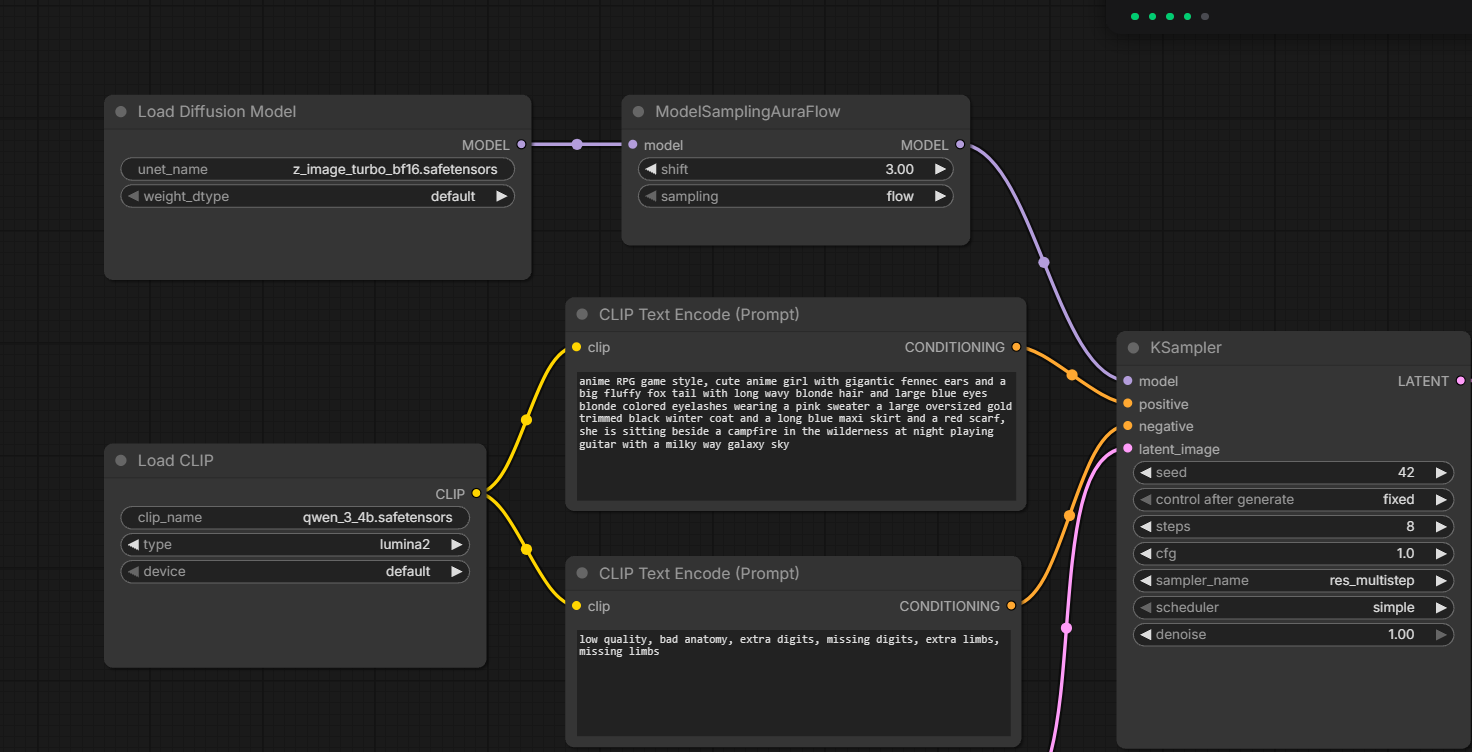
Editor data includes nodes, positions, settings, and links needed to reconstruct the canvas. It is useful when you want someone to reopen and edit the visual workflow. An API prompt serves a different purpose: it names the executable node classes and the values or upstream outputs supplied to their inputs.
The official basic API example uses a top-level mapping from node IDs to objects containing class_type and inputs. A linked input refers to a source node ID and an output index.
Artifact | Useful identifying clues | Main purpose |
|---|---|---|
Editor workflow | A nodes collection, canvas information, and link records | Reopen and edit the graph |
API prompt | Node-ID keys with class_type and named inputs | Describe executable operations |
Submission envelope | A prompt field containing the API graph | Send a job request to the server |
These clues help you inspect a file; they are not a complete detector for every wrapper or advanced workflow. A tool can also wrap a graph inside its own document. Read the contract of the tool receiving it.
Use export to establish a known starting point
Build or open a workflow in the editor and confirm which export operation produces the artifact you need. Preserve an editor copy for visual editing and an API copy for execution tooling. Don't change the filename to .api.json and assume the contents have been converted.
Keep the two copies associated with the same baseline. If you modify the editor graph later, re-export the executable version rather than assuming an old API file follows the changes automatically.
Think of the editor workflow as a wiring diagram and the API prompt as operating instructions. Both describe the same system, but each records information needed for a different job.
Read an editor connection by schema version
In editor format v1.0, the schema represents a link as an object with named endpoints. This is an illustrative link fragment, not a complete editor workflow:
{
  "id": 12,
  "origin_id": 4,
  "origin_slot": 1,
  "target_id": 6,
  "target_slot": 0,
  "type": "CLIP"
}
Read it as link 12 connecting output slot 1 of node 4 to input slot 0 of node 6. The type field identifies the connection's declared type. To understand what those slots mean, inspect the actual source and destination nodes.
The legacy v0.4 schema instead defines a positional link array. The corresponding illustrative record is:
[12, 4, 1, 6, 0, "CLIP"]
The positions encode link ID, source node ID, source slot, destination node ID, destination slot, and type. A parser written for that array cannot simply assume the same representation in a v1.0 file.
Treat identifiers as references
A node ID identifies a node within that graph. A link ID identifies a connection record. Neither is the node's visible title or its executable class name.
If you change an identifier, inspect every reference to it. Renumbering a node without updating its incoming or outgoing relationships can leave the file syntactically valid while making the graph inconsistent.
For a hand-edited editor file, check the relevant central link record and the node's own input/output references. Preserve the exported representation rather than deleting fields you think are merely redundant. A visual editor can use more than one part of the document to reconstruct a connection.
Don't infer topology from where a box sits on the canvas. A node positioned to the right can still feed another node to its left. The connection records, not the drawing coordinates, describe the relationship you need to trace.
Check both sides of a connection
Write down the source class, output slot, output type, destination class, and destination input. This small connection inventory makes it easier to spot a wrong slot than scanning a large JSON document repeatedly.
If a connection looks structurally intact but the workflow fails, move on to the live node definitions. A valid reference to an existing node still can supply the wrong kind of output to its destination.
Follow a complete two-node API graph
An API prompt stores a connection at the receiving input. To make that visible without model downloads, consider this small graph:
{
  "1": {
    "class_type": "EmptyImage",
    "inputs": {
      "width": 256,
      "height": 256,
      "batch_size": 1,
      "color": 0
    }
  },
  "2": {
    "class_type": "SaveImage",
    "inputs": {
      "filename_prefix": "connection-check",
      "images": ["1", 0]
    }
  }
}
This is a complete small API graph, subject to those core nodes being available on the target instance. It creates a solid-colour image and saves it; it is not an AI sampling workflow.
The current ComfyUI core node source defines EmptyImage's first output as IMAGE and SaveImage's images input as IMAGE. Here, images: ["1", 0] means the destination receives output slot 0 from node "1".
The graph has no central editor-style links collection. The reference lives inside node "2"'s inputs. Node "1"'s width, height, batch size, and colour are literal settings, while the images value is a connection.
Why the output index matters
An output index selects one return value from a node. It is not a destination node number and not the number of times the node should run.
A source node with several outputs can supply different data types at different indices. Before copying an index from another graph, check what the source class returns in the target installation. The same pair of nodes can be wired incorrectly if the chosen output does not match the receiving input.
Use the visible editor and node information to understand the intended path before replacing connections. In a larger graph, follow the branch feeding the final output backward until you can explain each dependency.
The request envelope is another layer
The small graph above is the prompt object. It is not necessarily the complete request body. In the official local API example, submission wraps that graph inside a prompt field.
The server-route documentation describes the local prompt-submission and inspection routes. A cloud service, SDK, or third-party wrapper can have a different outer request contract. Confirm the endpoint's expected shape rather than copying only the inner graph.
With the connection identified, distinguish edits to literal settings from edits to graph relationships.
Change settings without changing the topology
Changing a prompt string or image size should not require rewiring a graph. Locate the exact node and input that control the setting, keep a baseline copy, and edit one value at a time.
For the small example, changing node "1"'s width adjusts a literal input while preserving the connection to SaveImage. Changing the images reference affects the graph's topology instead. Those are different kinds of edits and should be reviewed differently.
A minimal offline check can verify the example's expected shape. Save the preceding API graph as connection-check.api.json, then run this script:
# Check the specific two-node example without submitting it to ComfyUI.
import json
from pathlib import Path

path = Path("connection-check.api.json")
graph = json.loads(path.read_text(encoding="utf-8"))
assert graph["1"]["class_type"] == "EmptyImage"
assert graph["2"]["class_type"] == "SaveImage"
assert graph["2"]["inputs"]["images"] == ["1", 0]
assert graph["1"]["inputs"]["width"] > 0
assert graph["1"]["inputs"]["height"] > 0
print("The example's node and link structure matches expectations.")
This script checks this example only. It does not validate every ComfyUI graph, enforce all numeric limits, or prove that the target instance can run it. Its result applies only to the supplied example.
Do not map widgets by guesswork
Editor settings can be stored in widget data, while executable inputs are named. Treating every widget position as a universal input name is fragile. A different node implementation or frontend feature can change how values are represented.
Prefer the editor's API export or a maintained converter appropriate to your workflow. If you build conversion tooling, test the node types and workflow features you support explicitly. Don't claim support for arbitrary graphs because one basic template converts successfully.
The same restraint applies to two-item arrays. A general validator should not assume every array is a link; some inputs can legitimately accept literal arrays. Use the node input schema and representation rules instead of a shape-only guess.
After the edit, compare the intended changes with the saved baseline. Then validate the environment that will execute the graph.
Validate the graph against its target installation
If an AI client will submit the workflow, use the ComfyUI MCP server setup and connection checks to verify that connection before running the graph.
Validation is a sequence of different questions. Start with syntax, then move through structure and compatibility to execution.
Check | Question | Evidence |
|---|---|---|
JSON syntax | Does the document parse? | Parser result |
Format | Is it the artifact the receiving tool expects? | Matching schema or endpoint contract |
References | Do linked nodes and slots exist? | Connection inventory |
Compatibility | Do live node classes and inputs match the graph? | Target node information |
Dependencies | Are selected models and input assets available? | Target installation inventory |
Execution | Did the submitted job complete as intended? | Job result and inspected output |
Passing one row does not imply that the later rows pass. A workflow can parse perfectly and still name a missing class. It can use installed classes and still select a model file that doesn't exist there.
Use the target's node information
The local route reference includes object_info, which exposes node information from the running server. Compare the graph's class names, inputs, and expected outputs with that target's definitions.
A title such as “Positive prompt” is a display label. It can help a person identify the node, but it is not a substitute for the executable class and input names. Keep those distinctions clear in scripts that locate or modify nodes.
If a custom node is unavailable, find its actual dependency before deciding whether to install it, replace it, or choose a simpler graph. A version mismatch, failed import, or frontend feature can resemble a missing package. Preserve the exact error and node identifier.
Test the intended output branch
For a runtime test, use a small input and keep the job identifier. Follow the job to completion and inspect the artifact associated with that identifier. A submission response confirms a step in the process; it doesn't establish the visual result.
If the graph has several output branches, check the ones you intend to deliver. A successful branch doesn't necessarily demonstrate that another branch contains usable data.
When a test fails, change one relevant variable and retry deliberately. Preserve the workflow copy and error from the failed run so you can distinguish a corrected link from an unrelated settings change.
Preserve both the editor graph and executable export
Keep the editor workflow and its API export together, with names that make their roles obvious. Record the target ComfyUI version, custom-node versions, model filenames, and input assets needed to reproduce the tested result.
The JSON describes a graph, but it doesn't bundle every dependency required to execute it. Sharing a file is therefore only one part of sharing a reproducible workflow. Add a short dependency note rather than expecting another machine to infer your environment.
Preserve source image metadata when it is useful, but save explicit JSON copies too. An image passed through another tool or service may no longer carry the workflow information you expect. A separate graph file is easier to inspect and compare.
Before handing a workflow to a script or another person, check:
The file's role and schema version are identified.
Node identifiers and link references are consistent.
Output slots feed inputs with compatible meanings and types.
The executable export matches the intended editor baseline.
Required node classes, models, and input assets are documented.
The tested job and its output are associated with the saved graph.
Understanding ComfyUI workflow JSON nodes and connections is largely about following references carefully. Read one edge, confirm both endpoints, and keep format conversion separate from parameter editing. That approach makes a large graph less mysterious and gives you a clear place to look when an otherwise valid JSON file refuses to run.