Free AI Video Upscale: Best Tools to Enhance Your Videos
Low-resolution video is frustrating. You have footage that looks great but plays at 720p or even lower. Maybe it's old home movies, screen recordings, or content from a budget camera. Whatever the source, the results feel outdated—and upgrading hardware isn't always an option.
That's where AI video upscaling comes in. These tools use machine learning to analyze each frame, predict higher-resolution detail, and produce results that look significantly better than simple interpolation. The best part? Some excellent options are completely free.
This guide covers the top free AI video upscale tools, what they do well, and how to pick the right one for your needs.
What Is AI Video Upscaling Anyway
Traditional upscaling stretches an image to fill more pixels. The result is blurry or blocky because the computer is basically guessing what should be in those new pixels.
AI upscaling works differently. The model has learned from millions of videos what detail should look like at higher resolutions. When you upscale, it applies that knowledge to predict realistic detail—edges, textures, fine lines—that would naturally exist in higher-quality footage.
The difference is immediately visible. A 720p video upscaled with AI can look closer to 1080p or even higher, depending on the tool and source quality. It's not magic—you can't create detail that wasn't there—but it's remarkably close.
This matters for designers working with client footage, content creators republishing to new platforms, or anyone trying to preserve old videos with acceptable quality.
Top Free AI Video Upscale Tools
Topaz Video AI: The Quality Leader
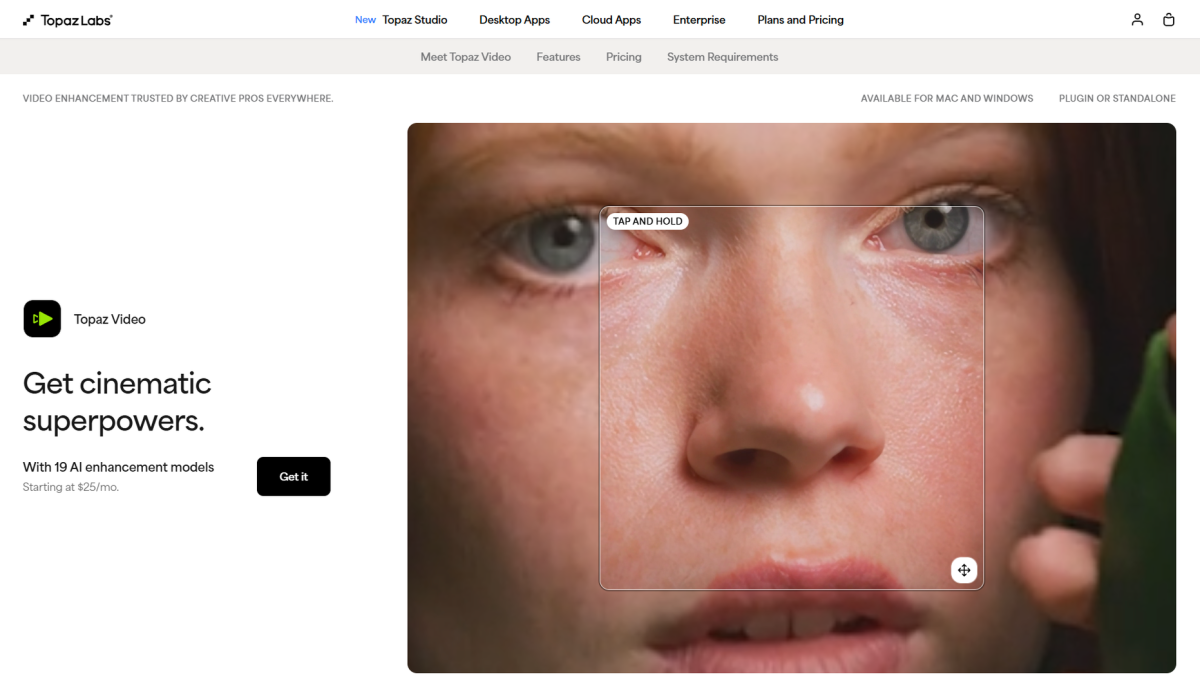
Topaz Video AI consistently produces the best results among free options. It offers multiple models optimized for different content types—interpolation for smoothing motion, upscaling for resolution, and stabilization for shaky footage.
The interface is straightforward: import your video, choose your model, preview a section, and render. Processing happens locally on your machine, so you don't need to upload anything or worry about privacy.
The catch with Topaz is render time. AI upscaling is computationally intensive. A one-minute clip might take 30 minutes or more to process, depending on your hardware. But the quality justifies the wait.
Upscale capability: Up to 8K Processing: Local Best for: Quality-priority projects, when render time isn't critical
AVCLabs Video Enhancer AI: User-Friendly Quality
AVCLabs strikes a good balance between quality and accessibility. The interface is cleaner than some alternatives, making it easier for beginners to navigate without feeling overwhelmed.
It offers multiple enhancement modes: upscaling, denoising, color correction, and face refinement. You can combine these for comprehensive improvement or use them selectively.
The free version has some limitations—render watermarks or resolution caps—but it's enough to test the tool and handle smaller projects. The paid version removes these restrictions and adds faster processing.
Upscale capability: Up to 4K Processing: Local (with cloud option) Best for: Beginners wanting good results without complexity
DaVinci Resolve: Professional Power, Free Core
DaVinci Resolve is primarily a professional video editor, but its AI-powered Super Scale feature handles upscaling with impressive results. If you're already editing in Resolve, there's no reason to use a separate tool.
The Super Scale feature offers multiple quality levels. Higher settings produce better results but take longer to render. You can also combine upscaling with other enhancement tools—color grading, noise reduction, sharpening—for a complete workflow.
The learning curve is steeper than dedicated upscaling tools. Resolve is a full editor, so there's more to learn. But for designers already working in professional software, this is the most integrated option.
Upscale capability: Up to 8K Processing: Local (GPU-accelerated) Best for: Users already in professional editing workflows
Pixelcut: Quick Online Upscaling
If you need something fast and don't want to install software, Pixelcut offers browser-based AI upscaling. Upload your video, wait for processing, and download the result.
The quality doesn't match desktop software—browser processing has limitations—but it's surprisingly capable for what it is. The convenience factor is significant: no installation, works on any computer, handles the job without fuss.
Free tier has usage limits, but they're generous enough for occasional use. You can upgrade for more credits if the tool becomes essential.
Upscale capability: Up to 4K Processing: Cloud Best for: Quick jobs, no-installation convenience, casual use
CapCut: Feature-Packed Free Option
CapCut started as a mobile video editor but has evolved into a capable desktop tool with impressive AI features, including video upscaling.
The upscaling is part of a complete editing package. You can upscale, then color grade, add effects, and export—all in one place. The AI enhancement tools include noise reduction, stabilization, and color correction alongside upscaling.
The quality is solid for a free tool. It's not Topaz-level, but it's competitive with other options in this price bracket. The advantage is the integrated workflow if you're already using CapCut for editing.
Upscale capability: Up to 4K Processing: Local and cloud Best for: Integrated editing workflow, mobile-to-desktop projects
Comparing Your Options
Tool Quality Speed Learning Curve Cost
Topaz Video AI
Highest
Slow
Easy
Free (with limits) / Paid
AVCLabs
High
Medium
Easy
Free / Paid
DaVinci Resolve
High
Medium
Steep
Free / Paid
Pixelcut
Medium
Fast
Easy
Free tier / Paid
CapCut
Medium
Fast
Easy
Free
When to Use Each Tool
Choose Topaz Video AI when quality is paramount and you can afford the render time. It's the tool for projects where the result will be heavily scrutinized.
Choose AVCLabs when you want good quality with less friction. The interface is friendlier for newcomers to video enhancement.
Choose DaVinci Resolve when you're already editing in a professional environment. The Super Scale feature integrates with a complete color and editing workflow.
Choose Pixelcut when you need something now, don't want to install anything, or are working on a computer that can't handle local processing.
Choose CapCut when you're already in their ecosystem or want a complete free editing package with upscaling included.
Getting Better Results
AI upscaling works best when you set realistic expectations and optimize your workflow:
Source quality matters. AI can add detail it "predicts," but it can't invent information that wasn't there. A noisy, compressed 360p video will improve but won't look like it was originally shot in 4K.
Preview before full render. AI upscaling is slow. Render a short sample first—10 to 30 seconds—to verify quality before committing to a full render that might take hours.
Combine with other enhancements. Most tools offer denoising, color correction, and stabilization alongside upscaling. Using multiple enhancements often produces better results than upscaling alone.
Watch for artifacts. AI can sometimes create strange patterns in backgrounds, generate false edges, or produce flicker. Review your footage carefully, especially on flat backgrounds or repetitive textures.
The Practical Reality
Free AI video upscaling has reached the point where it's genuinely useful for most projects. The results aren't Hollywood-level—they won't replace footage shot at higher resolutions—but they're dramatically better than what you'd get from standard upscaling.
For designers working with mixed-resolution assets, content creators repurposing footage across platforms, or anyone trying to breathe new life into old video, these tools deliver real value. The best approach is to identify your priority—quality, speed, convenience—and pick accordingly.
Start with the tool that matches your primary need. Topaz for quality, Pixelcut for convenience, CapCut for integrated editing. Test with actual footage, see what works for your specific use case, and go from there.
Stefan Tran
Tek lover